What Is Google Analytics 4? GA4 Guide 2026
APRIL 16 ,2026
Google Analytics 4 (GA4) is Google's next-generation web and app analytics platform, introduced in 2020 and fully replacing Universal Analytics in 2023. Unlike its predecessor, GA4 measures user behavior through events rather than sessions — giving digital marketers a far deeper and more flexible view of how users interact with their digital properties. By 2026, GA4 has become the indispensable analytics tool at the center of every serious digital strategy.
What Are the Differences Between GA4 and Universal Analytics?
Universal Analytics (UA) was fully shut down in 2023. But many digital marketers are still thinking in UA terms — and as a result, they're not getting full value from GA4. Understanding the fundamental differences between the two platforms is the first step to using GA4 effectively.
Session-Based vs Event-Based Measurement
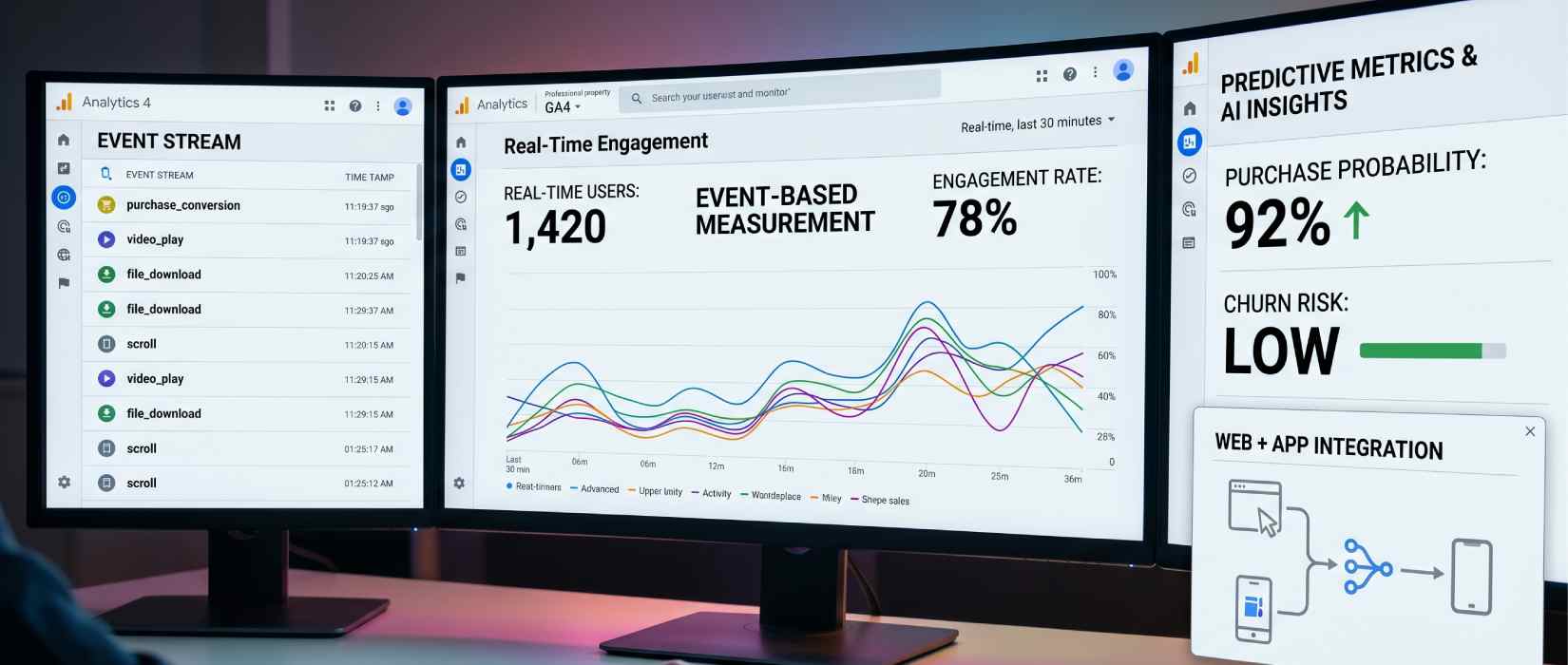
Universal Analytics measured user behavior through sessions. GA4 records every user interaction as an "event." Page views, clicks, video plays, form submissions — each of these is tracked as a separate event in GA4. This approach allows for a far more granular understanding of the user journey.
Web and App Integration
Universal Analytics only measured websites. GA4 combines web and mobile app data into a single platform. If you have both a website and a mobile app, you can track the complete user journey without interruption.
Privacy-First Architecture
In a world of increasing cookie restrictions, GA4 uses machine learning-based modeling to fill in data gaps caused by consent limitations. This makes compliance with regulations like GDPR easier while maintaining data quality.
New Reporting Structure
UA's "Goals" have been redesigned as "Conversions" in GA4. Bounce rate has been replaced by "engagement rate." Reports are more flexible and customizable than ever before.
How to Set Up GA4?
1. Create a GA4 Property
Log into your Google Analytics account. From the "Admin" menu in the bottom left, click "Create Property." Enter your property name, time zone, and currency. Your GA4 property will be created.
2. Add a Data Stream
After creating the property, go to "Data Streams" and add your website. Enter your URL and stream name. GA4 will provide a Measurement ID in the format G-XXXXXXXX — keep this handy.
3. Add the GA4 Tag to Your Site
There are two ways to add your Measurement ID to your site:
section of your website.
- Via Google Tag Manager (GTM): Create a new GA4 tag in GTM, paste in the Measurement ID, and set a trigger for all pages.
- Directly in code: Add the global site tag (gtag.js) provided by GA4 to the
4. Define Conversions
GA4 automatically measures some events by default (page views, first visits, session starts). For important interactions like form submissions, purchases, or specific page visits, go to the "Events" menu, select the relevant event, and toggle "Mark as conversion" to active.
GA4's Core Reports
Real-Time Report
Shows active users on your site right now, which pages they're viewing, and which events they're triggering. Ideal for monitoring immediate impact when launching a new campaign or publishing new content.
Acquisition Report
Shows which channels users are coming from: organic search, direct traffic, social media, email, paid search. The most frequently used report for evaluating SEO performance and channel-level ROI.
Engagement Report
Shows which pages users visit, which events they trigger, and how long they spend on your site. Critical for understanding which content contributes to conversions.
User Report
Shows demographic information about your users (age, gender, geography), the devices they use, and their interests. Allows you to update your audience strategy based on real data.
Conversion Report
Shows how often your defined conversion events occur and which channels they come from. Provides the most reliable data for deciding how to allocate your marketing budget across channels.
GA4 and SEO: How to Track Organic Performance
When GA4 is integrated with Google Search Console, it enables far deeper analysis of organic SEO performance.
Search Console Integration
From the GA4 admin panel, go to "Search Console Links" and connect your GSC account. This integration lets you see which keywords are driving traffic to which pages, average positions, and click-through rates — all within the GA4 interface.
Organic Channel Segmentation
In the Acquisition report, select the "Organic Search" segment to analyze only organic traffic. You can identify which pages are generating conversions from organic search and which landing pages have high bounce rates.
Custom Reports and Explore
GA4's "Explore" section lets you go beyond standard reports. Funnel analysis, cohort analysis, and segment comparisons allow you to examine the impact of your SEO work at every stage of the conversion funnel in detail.
What's New in GA4 in 2026?
AI-Powered Insights
GA4's machine learning algorithms automatically detect unusual traffic fluctuations, conversion opportunities, and user drop-off points. The automatic alerts in the "Insights" panel accelerate data analysis significantly.
Predictive Metrics
GA4 predicts purchase probability, churn probability, and predicted revenue for user segments. These insights can be integrated with Google Ads to build campaigns targeting high-value users with precision.
Data Retention Settings
GA4's default data retention period is 2 months. For long-term analysis, we strongly recommend extending this to 14 months in the admin panel. Make this change as soon as possible — historical data cannot be recovered once it's gone.
Frequently Asked Questions
Is GA4 free?
Yes. The standard version of GA4 is completely free. Google Analytics 360 is the paid enterprise version for large-scale needs.
Was my Universal Analytics data migrated to GA4?
No. Universal Analytics data was not automatically migrated to GA4. UA data was accessible until July 2024 — it is no longer available through the Google interface. If you need historical data archiving, consider BigQuery integration going forward.
Why does GA4 data differ from Google Search Console?
GA4 and GSC use different measurement methodologies. GSC measures search engine-side data (impressions, clicks, position), while GA4 measures user behavior from the moment they arrive on your site. A data discrepancy between the two platforms is completely normal.
Can I use one GA4 account for multiple websites?
Yes. You can create multiple properties under a single GA4 account and define separate data streams for each website.
Set up your brand's digital analytics correctly and grow with data. Get in touch with the Reklam5 team.
Categories
Copyright 2026 -
Reklam5: Dijital Ajans